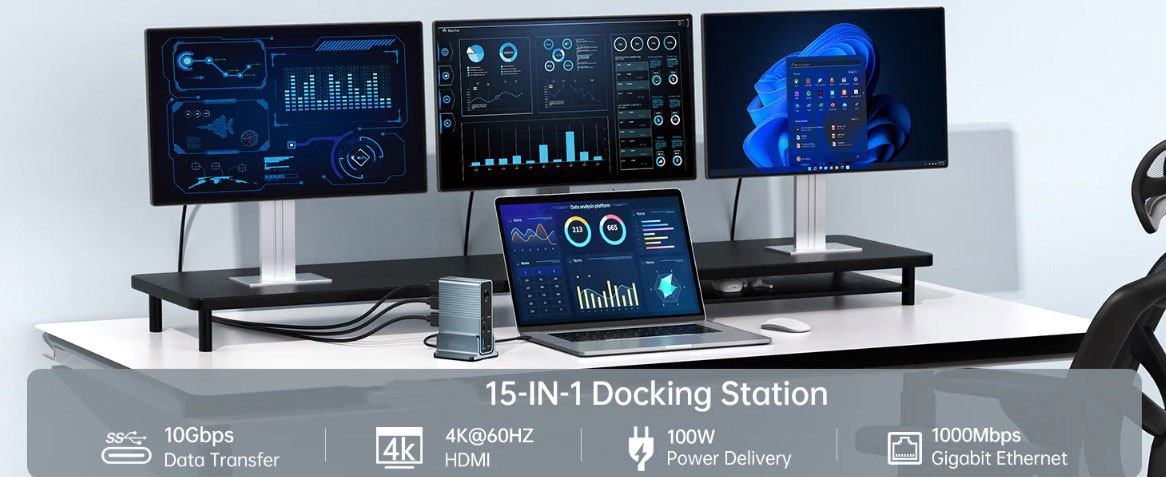
For business professionals seeking to enhance productivity and make the most of their time, constructing a multi-monitor system is a highly effective solution. By adding one, two, three, or even more external displays, significant improvements in work efficiency can be achieved. In fact, Core Communications summarized four studies that quantified the productivity gains from adding just a single monitor. A study by the University of Utah revealed that employees using a second monitor for all tasks could save 2.5 hours per day, translating to substantial time and cost savings.
Fortunately, DisplayPort's Multi-Stream Transport (MST) technology offers a simple and cost-effective way to expand a workstation's display capabilities. MST supports DisplayPort 1.2, Mini DisplayPort 1.2, or USB-C (with DP Alt-Mode) output ports, enabling the expansion of a desktop or laptop to multiple monitors.
MST Hub Configuration
MST can be implemented with various system configurations, but the most common involves using an MST hub. The MST hub works by independently distributing the DisplayPort 1.2 video stream from the source device to each connected monitor. This allows each monitor to display separate content within the operating system, which can be arranged according to user needs. It's crucial to verify that the graphics card can handle the number of monitors you intend to connect.
MST vs. Traditional Monitors
MST hubs come with DisplayPort or HDMI output ports. However, traditional monitors can still be used with the help of active adapters/converters.
Video Modes
MST offers three video modes, each with its unique purpose:
1. Extended Mode: The most commonly used mode for multitasking, allowing different windows to be opened on each monitor. This facilitates easy content movement between screens, such as referencing data on one screen while working on documents or spreadsheets on another. It's also useful for comparing images, data sets, or products.
2. Mirror Mode: Also known as copy or clone mode, this displays the same content on all screens. It's often used in commercial settings to showcase information or promotional messages to passersby. Note that this is the only mode available for macOS users.
3. Video Wall Mode: This mode offers the most visually striking experience by combining all monitors into a single large display. It can create an ultra-wide screen for unique gaming experiences or engaging digital signage. However, video wall mode (e.g., panoramic) requires graphics adapters with AMD Eyefinity, Intel, or NVIDIA Surround technology.
Checking Graphics Performance
Not all computer systems support MST, and there may be limitations on the number of screens they can handle. Therefore, it's essential to check the manufacturer's website for compatibility:
1. Interface Version: Ensure that your DisplayPort or Mini DisplayPort interface is DP v1.2 or higher. This is a critical requirement for MST. If unsure, consult the graphics card or system manufacturer.
2. System Compatibility: macOS does not support MST functionality and can only mirror displays.
3. Drivers: To ensure system stability, install the latest graphics drivers. Contact the system/graphics card manufacturer or chip vendor (e.g., AMD, Nvidia, or Intel) for the latest drivers, as updating through the device manager may not provide the most recent version.
4. Monitor Quantity Limits: MST hubs do not increase the number of monitors supported by the graphics card. The number of monitors a graphics card can support is limited. Typically, AMD and Nvidia graphics cards support up to four monitors, while Intel graphics cards support up to three. Confirm this with the graphics card or system manufacturer.
5. Bandwidth Requirements: When using multiple monitors, refer to the bandwidth table to ensure the system can handle the load. For instance, using 4K monitors at 1080p may still consume 4K bandwidth, potentially reducing the total bandwidth available for other monitors.
6. Surface Dock Compatibility: Micro-soft Surface Dock is incompatible with Mini DisplayPort MST hubs. Therefore, avoid using them together. Connect them directly to the Surface tablet/laptop.
7. Compatible Products: The following Micro-soft Surface products are compatible with MST hubs: Surface Pro 2, Surface Pro 3, Surface Pro 4, and Surface Book.